English
  Deutsch














Kiosk Types, Uses and Buying Considerations

Choose the kiosk application before comparing enclosures and screen sizes.
A kiosk has a screen, a computer, software and a case. It may also need a barcode reader, printer, payment device, camera or keyboard. Choose these parts for the task.
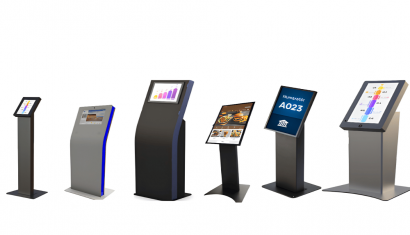
Unisign Standard Kiosks come in several body styles. Depending on the model, screen sizes range from 10.1 to 32 inches. The range includes PCAP touch and Android or Windows options. Check the selected model for its supported setup and running hours.
What Is a Kiosk?
A kiosk is a digital terminal. People use its screen or other controls to find information or complete a task.
Typical kiosk applications include:
- Product and service information
- Interactive catalogues
- Digital wayfinding
- Self-service ordering
- Product scanning and checkout
- Barcode price checking
- Registration and check-in
- Form submission
- Corporate information and promotions
Choose the hardware and software for what the user needs to do.
How Does a Kiosk System Work?
A kiosk links a user with a business system.
The user taps the screen, uses a keyboard or scans a code. The software then handles the request. It may need a link to a POS, ERP, booking tool or product database.
The system can show a result, print a receipt or send data to another tool. Some tasks also include payment.
Types of Kiosks
Information Kiosk
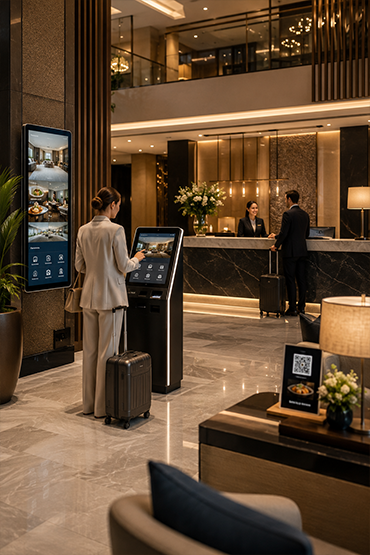
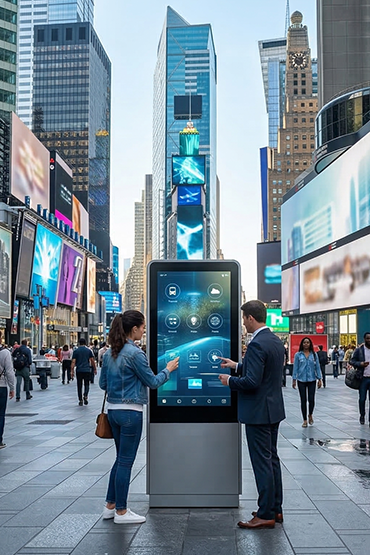
An information kiosk shows products, services or events. Shops, hotels, hospitals, schools and public buildings can use it.
Wayfinding Kiosk
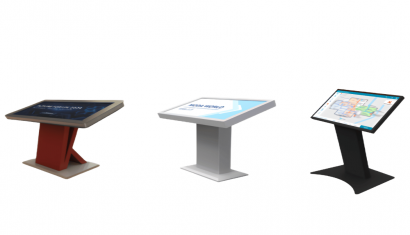
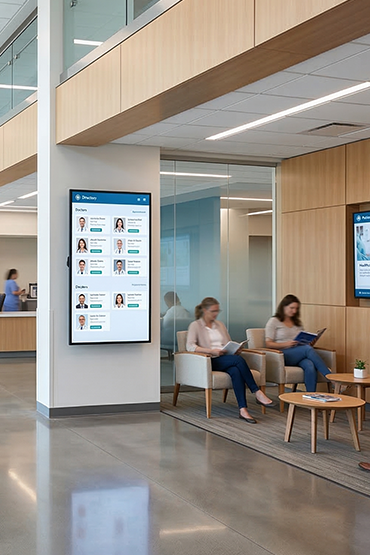
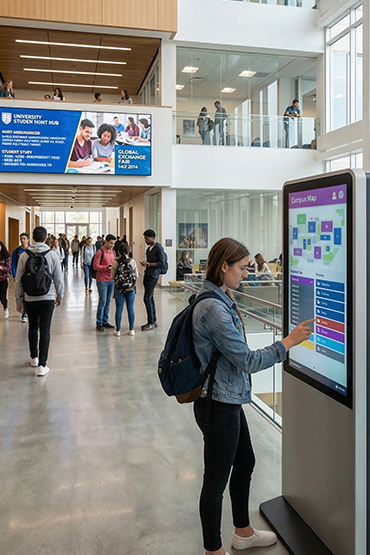
A wayfinding kiosk helps visitors find a place. It can show maps, floor plans, rooms and routes.
Interactive Product Kiosk
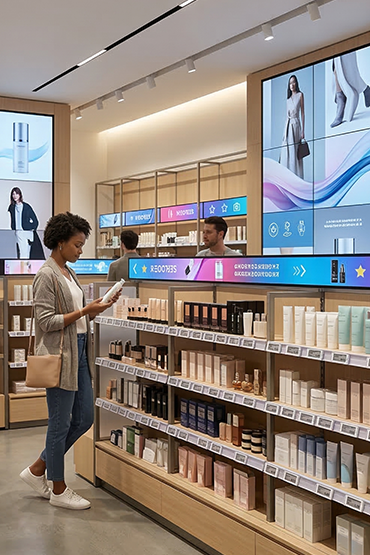
A product kiosk lets shoppers browse a range and compare features. It can show choices that are not on the shelf.
Self-Service Kiosk
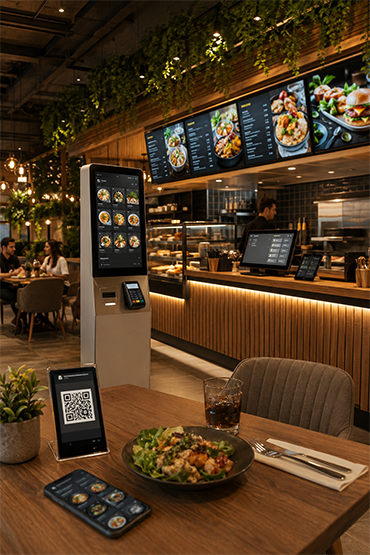
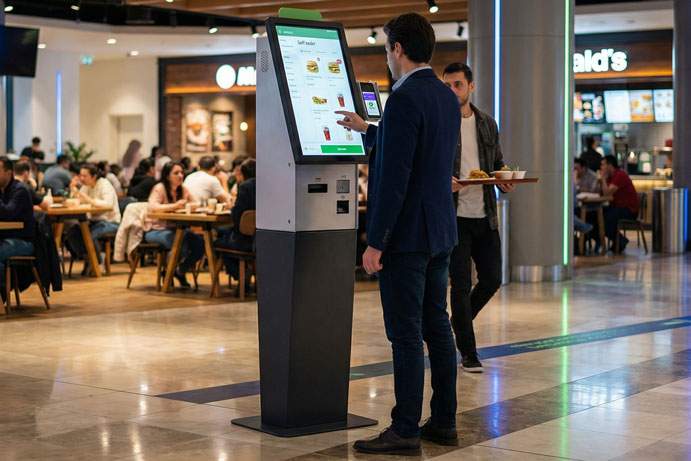
A self-service kiosk lets people complete a task on their own. They may place an order, check in, choose a service or fill in a form.
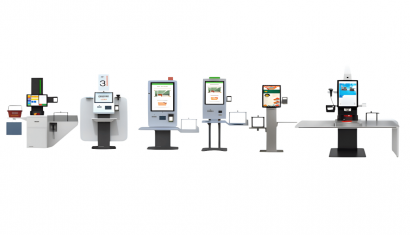
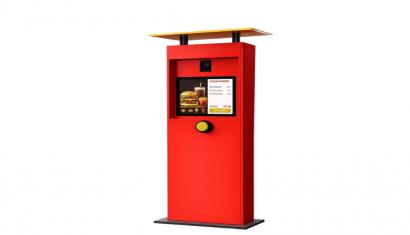
Unisoft Self Order Kiosk solutions offer different display and installation formats, while project-specific configurations can include printers, barcode readers, or payment infrastructure.
Self-Checkout Kiosk
A self-checkout kiosk lets shoppers scan goods and pay. Depending on the setup, it may need a scale, card terminal, receipt printer and bagging area.
Price Checker
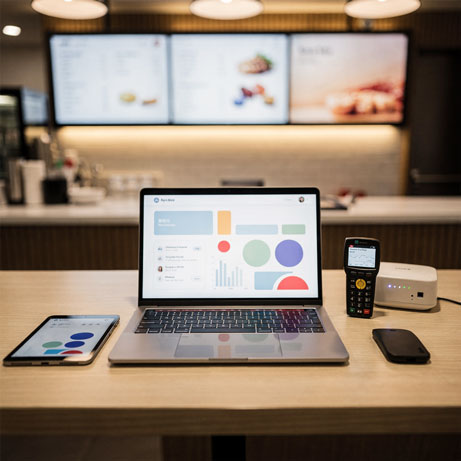
A Price Checker combines barcode scanning with a digital information display. Customers scan a product and view current pricing, promotional information, and product details. Suitable integrations can connect the device with ERP, POS, or store management systems.
Industrial Kiosk
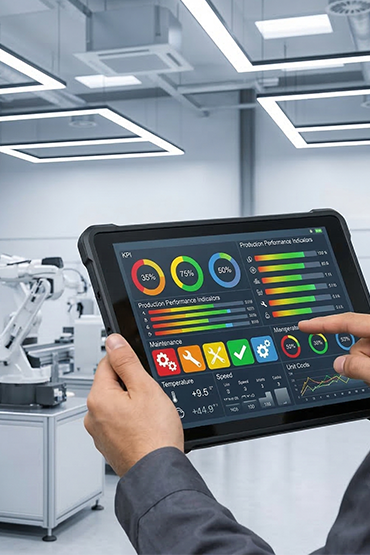
Industrial kiosks serve factories, warehouses and other work sites. Check the setting before choosing the case and controls. Some sites need steel cases, physical keys or hardware built for long shifts.
Accessible Kiosk
People need to see, reach and use the screen. Check its height, angle, text size, contrast and touch targets. Allow enough time for each step. An adjustable case may help some users.
Main Components of a Kiosk Device
Touch Screen
The screen is where most users start. Choose its size for the content, touch controls and viewing distance.
Enclosure
The case can stand on the floor, sit on a counter or mount on a wall. Plan space, power, cables and access for service. Some sites need a custom case.
Computer and Operating System
Choose Android or Windows to match the app and attached devices. Check that the required connections work.
Peripherals
A kiosk may include:
- Barcode or QR code reader
- Thermal printer
- Payment terminal
- Physical keyboard
- Camera
- Card reader
- Weighing unit
- Speakers
- NFC or authentication hardware
Test each printer, scanner or other device with the app and operating system before launch.
Kiosk Software
Software defines the task. The same kiosk body may run a catalogue, ordering app, price checker or map.
Where Are Kiosks Used?
Kiosks can be used in shops, cafés, hospitals, hotels and schools. They also serve offices, factories, libraries and public sites.
In shops, kiosks can show ranges, check prices or support checkout. In cafés, they can show menus and take orders. Hospitals and offices may use them for directions.
Kiosk vs. Digital Signage
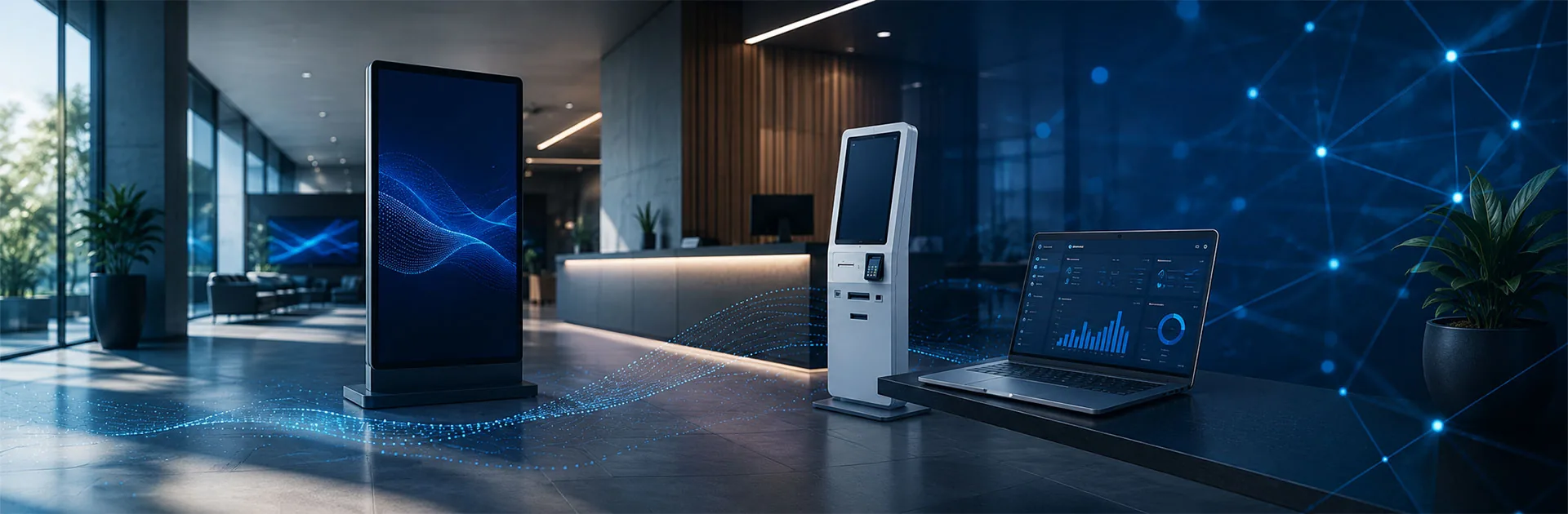
Digital signage shows content for people to watch or read. A touch kiosk also lets the user make choices and start a task.
Both can work together. A kiosk may show offers while idle. When someone touches the screen, it can open the app.
Unisoft can scope projects that combine screens, kiosks, content tools and setup. Agree the hardware, software and service work for each site.
How to Choose a Kiosk Model
Define the User Task
Start with the task. A map kiosk and a payment kiosk need different parts, data links and security checks.
Select the Appropriate Screen Size
A larger screen is not always better. Choose a size that fits the task, reach and viewing distance.
Choose the Installation Format
Plan where the kiosk will stand or mount. Check foot traffic, power, network access and room for service.
Confirm Software and Integrations
Define each data link before choosing the hardware. This may include ERP, POS, payment, bookings or a product database.
Consider Accessibility
Check screen height, reach, text and contrast. Make touch targets clear and allow enough time for each step.
Plan for Operating Hours
Match the hardware to the daily hours and site conditions. Check the rating for busy sites or long shifts.
Why Is Kiosk Software Important?
The hardware gives users a place to start. The app must make the task clear and easy to finish.
A kiosk application should provide:
- Clear navigation
- Short transaction flows
- Readable text and controls
- Error messages and recovery steps
- User permission management
- Remote updates
- Device monitoring
- Session reset
- Data security
- Reporting where required
Remote updates can reduce site visits across a group of kiosks. Confirm this function in the chosen software.
What Affects Kiosk Pricing?
The total cost covers hardware, software and the agreed service work.
Main pricing factors include:
- Display size and touch technology
- Resolution and brightness
- Enclosure material and design
- Android or Windows hardware
- Processor, memory, and storage
- Barcode reader
- Printer
- Payment terminal
- Camera or card reader
- Weighing system
- Kiosk software
- ERP, POS, or third-party integration
- Indoor or outdoor requirements
- Branding and customization
- Installation, training, and support
- Project quantity
A useful quote needs a clear task and a list of required data links.
Kiosk Project Process
Start with a brief. List the users, task steps, site conditions and required data links. Choose where the kiosk will go.
Set up the hardware and app, then test a pilot. Check the screen, network, scanner, printer and payment flow. Test what happens when a step fails.
After the pilot passes, plan rollout, staff training and support.
Conclusion
Kiosks can help people find places, browse products, order, pay or check prices. The best choice depends on the task and site.
Plan the user journey, app, hardware and data links together. Check access and placement with the people who will use it.
Review Unisign Standard Kiosks to compare enclosure and display options. Businesses can also evaluate Self Order Kiosks for restaurant ordering, Self Checkout Kiosks for retail payment, and Price Checker solutions for in-store barcode price queries.
Separate the tasks and the project scope
A map kiosk, restaurant order point and shop checkout serve different tasks. List what users need to do and how staff can help. Compare the full setup cost, not just the case. Use the ordering-cost guide for payment and EPOS planning.
A kiosk configuration built for your service
Kiosk hardware, ordering software, a printer and a payment terminal are selectable components rather than a fixed bundle in every quotation. Unisoft carries out the initial menu entry. Your team manages later product and price changes, with additional paid assistance available.
Compare the full kiosk scope
List the kiosk hardware, ordering software, printer and payment terminal selected for your project. Record the software setup fee and monthly or annual licence payments separately. Unisoft performs the initial menu entry; later updates are managed by your team or through paid assistance. Software updates, technical support and any demo or pilot are additional paid items. Ask for the project-specific integration and installation scope rather than assuming these are included in a hardware price.
Explore Related Solutions: Standard Kiosks · Self Order Kiosk · Self Checkout Kiosk










.png.webp&w=410&h=235 "DSFeed Content Management and Monitoring Service")